

Connecting a desk microphone and speaker to your computer is a straightforward process that can significantly enhance your audio experience, whether you're into gaming, video conferencing, or simply listening to music. As a supplier of desk microphones and speakers, I'm here to guide you through the steps and provide some useful tips.
Understanding the Basics
Before you start connecting your microphone and speaker to the computer, it's essential to understand the different types of connections available. Most modern computers come with two common types of audio ports: the 3.5mm audio jack and USB ports.
The 3.5mm audio jack is a standard connection for both microphones and speakers. It's a small, round port that can be found on the front or back of your computer. USB ports, on the other hand, are larger and rectangular. They offer a more stable and higher - quality connection, especially for more advanced audio devices.
Connecting a Desk Microphone
Using a 3.5mm Audio Jack
If your desk microphone has a 3.5mm audio jack, the process is quite simple. First, locate the microphone port on your computer. This port is usually colored pink and is labeled with a microphone icon. Plug one end of the 3.5mm cable from your microphone into the microphone port on your computer.
Once the physical connection is made, you need to configure your computer to recognize the microphone. On Windows, you can go to the Control Panel, then select "Sound." In the "Recording" tab, you should see your microphone listed. Select it and click "Set as Default Device." You can also adjust the microphone volume and other settings from this window.
On a Mac, click on the Apple menu, then select "System Preferences." Click on "Sound," and then select the "Input" tab. Choose your microphone from the list and adjust the volume slider as needed.
Using a USB Connection
If your microphone uses a USB connection, the process is even easier. Simply plug the USB cable from your microphone into an available USB port on your computer. Your computer should automatically detect the new device and install the necessary drivers.
After the drivers are installed, you can configure the microphone settings in the same way as with the 3.5mm connection. On Windows, go to the Control Panel and select "Sound," then the "Recording" tab. On a Mac, go to "System Preferences," then "Sound," and the "Input" tab.
Connecting a Desk Speaker
Using a 3.5mm Audio Jack
For speakers with a 3.5mm audio jack, find the headphone or speaker port on your computer. This port is usually colored green and is labeled with a speaker or headphone icon. Plug the 3.5mm cable from your speakers into this port.
To configure the speaker settings on Windows, go to the Control Panel, select "Sound," and then the "Playback" tab. Select your speakers and click "Set as Default Device." You can adjust the volume and other audio settings from this window.
On a Mac, go to "System Preferences," click on "Sound," and then select the "Output" tab. Choose your speakers from the list and adjust the volume slider.
Using USB or Bluetooth
Some modern speakers use USB or Bluetooth connections. If your speaker has a USB connection, plug the USB cable into an available USB port on your computer. The computer will detect the device and install the necessary drivers.
For Bluetooth speakers, first, make sure your computer has Bluetooth capabilities. On Windows, go to "Settings," then "Devices," and click on "Bluetooth & other devices." Turn on Bluetooth and click "Add Bluetooth or other device." Select "Bluetooth" and then choose your speaker from the list of available devices.
On a Mac, click on the Bluetooth icon in the menu bar, select "Set up Bluetooth device," and follow the on - screen instructions to pair your speaker.
Tips for a Better Audio Experience
- Positioning: Place your microphone at a proper distance from your mouth. Usually, 6 - 12 inches is a good range to avoid distortion and background noise. For speakers, position them at ear level and at an equal distance from your ears for a balanced sound.
- Noise Cancellation: If your microphone supports noise cancellation, enable this feature in the settings. It can significantly reduce background noise and improve the clarity of your voice.
- Audio Quality: Invest in high - quality microphones and speakers. As a supplier, we offer a wide range of products that can meet different needs and budgets. Check out our Best Gaming Pc Microphone for an immersive gaming audio experience.
Applications of Desk Microphones and Speakers
Gaming
In the gaming world, a good microphone and speaker are essential. A high - quality microphone allows you to communicate clearly with your teammates, while a great speaker can provide immersive sound effects. Our Best Gaming Pc Microphone is designed to pick up your voice accurately, even in the midst of intense gaming action.

Video Conferencing
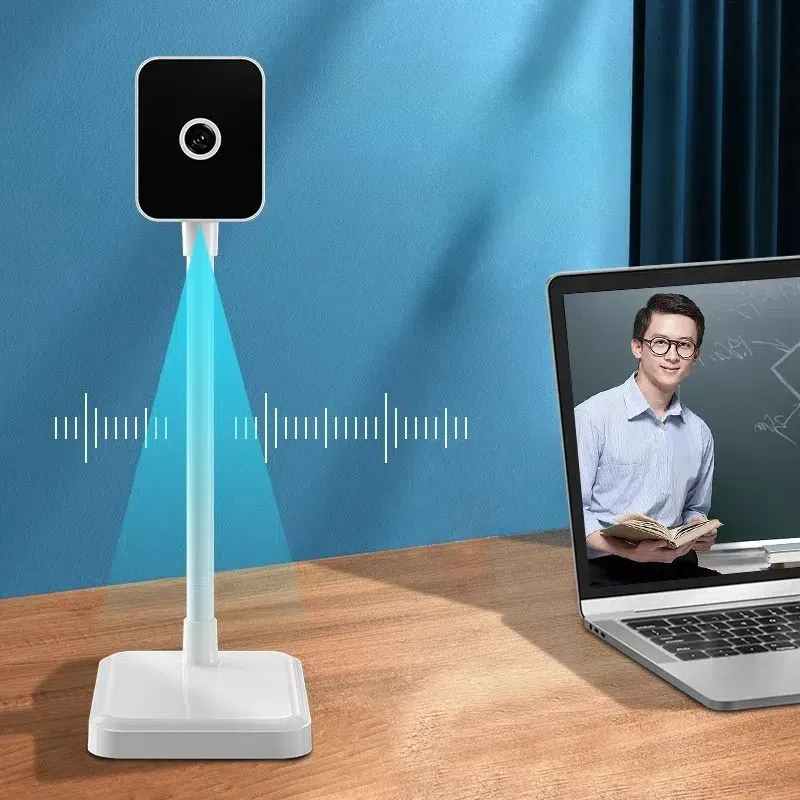
With the rise of remote work and online meetings, video conferencing has become a daily routine for many people. A good microphone and speaker can make a big difference in the quality of your video conferences. Our Camera and Microphone for Video Conferencing is a great choice for clear audio and video during meetings.
Music and Entertainment
Whether you're listening to music, watching movies, or streaming content, a decent speaker can enhance your entertainment experience. Our Best Portable Speaker and Microphone offers high - quality sound and portability, allowing you to enjoy your favorite media anywhere.
Contact Us for Procurement
If you're interested in purchasing desk microphones and speakers for your personal use, business, or any other purpose, we're here to help. We offer a wide range of products with different features and price points. Our team of experts can assist you in choosing the right products that meet your specific needs.
Feel free to reach out to us to start a procurement discussion. We're committed to providing you with the best products and services.
References
- Microsoft Support. (n.d.). Sound settings in Windows. Retrieved from Microsoft official website.
- Apple Support. (n.d.). Set up and use audio devices on Mac. Retrieved from Apple official website.


